01 Board
Make a plan.
Move it along.
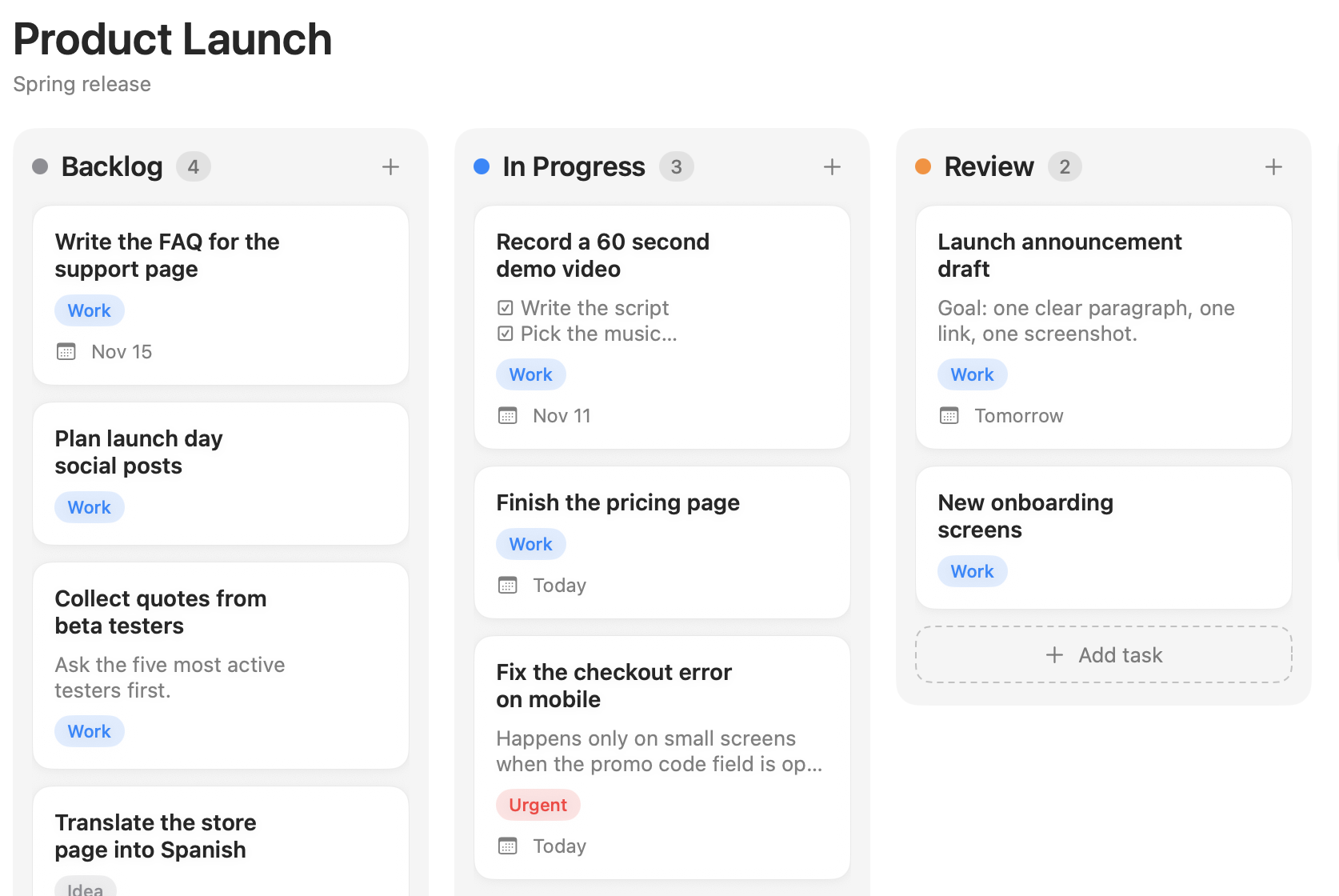
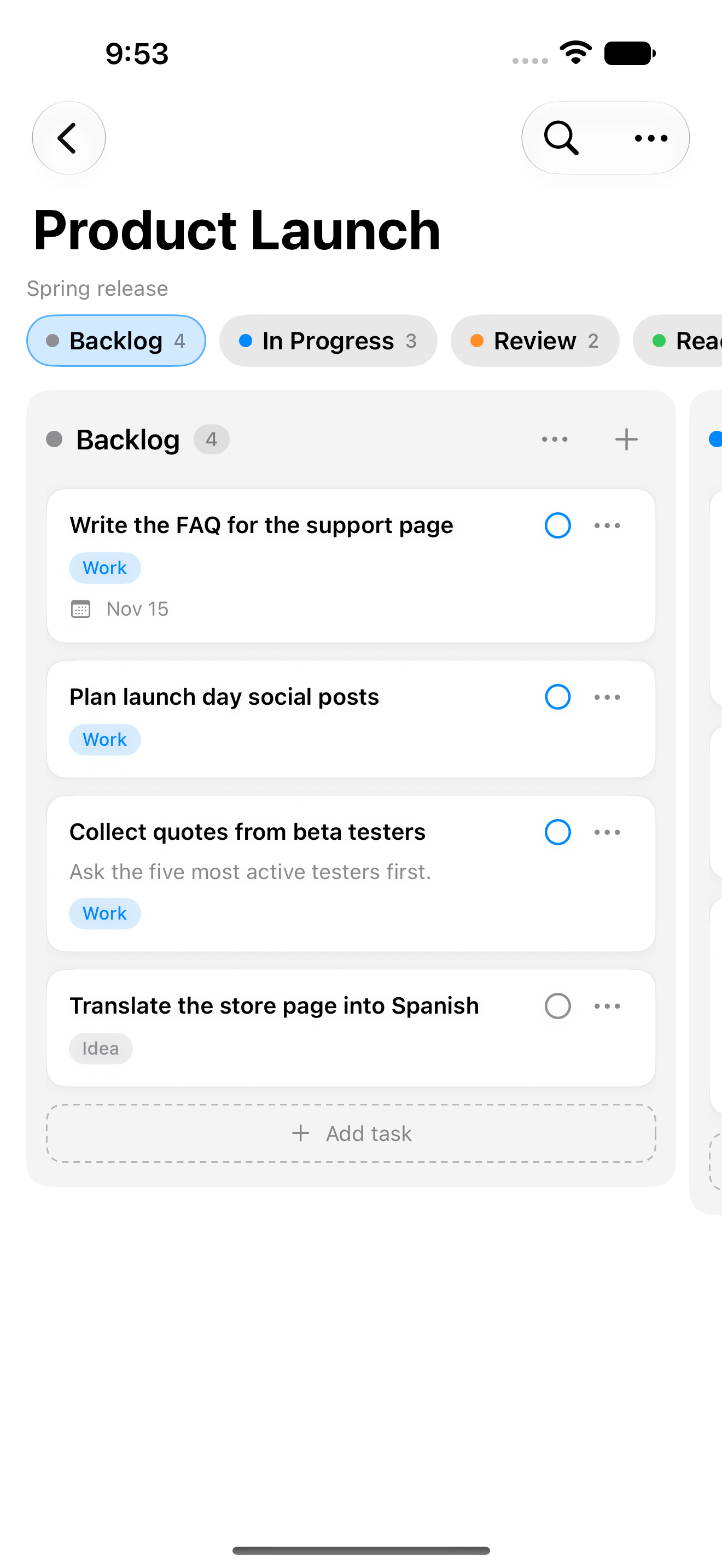
Start with Now, Next, and Later, or name your own columns. When a task is ready for the next step, drag its card into that column.
Board on Mac
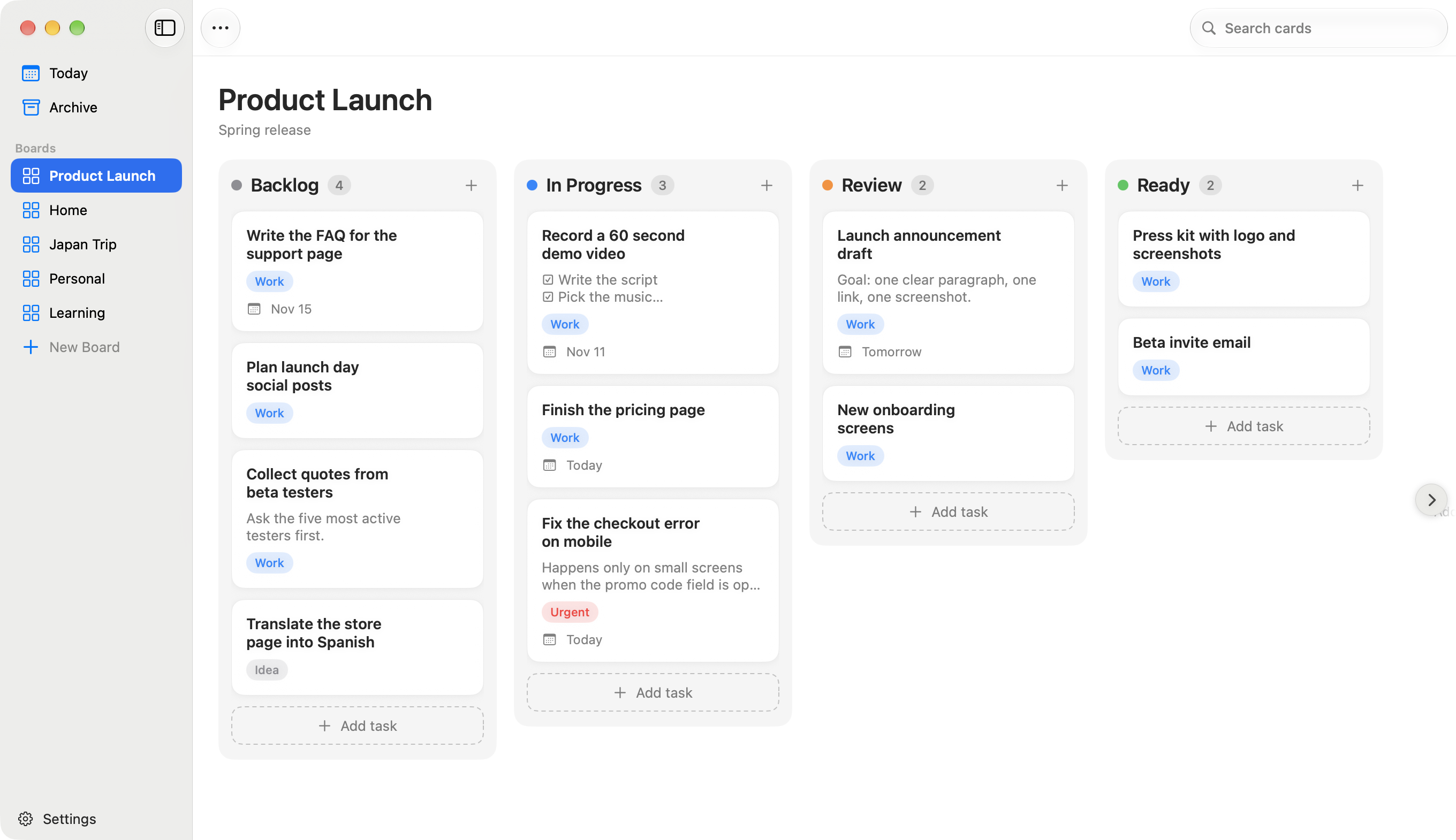
Personal Kanban board for Mac, iPad, and iPhone
Give every project its own board. Move cards as work progresses and see what’s due across all your boards.
Take a quick tour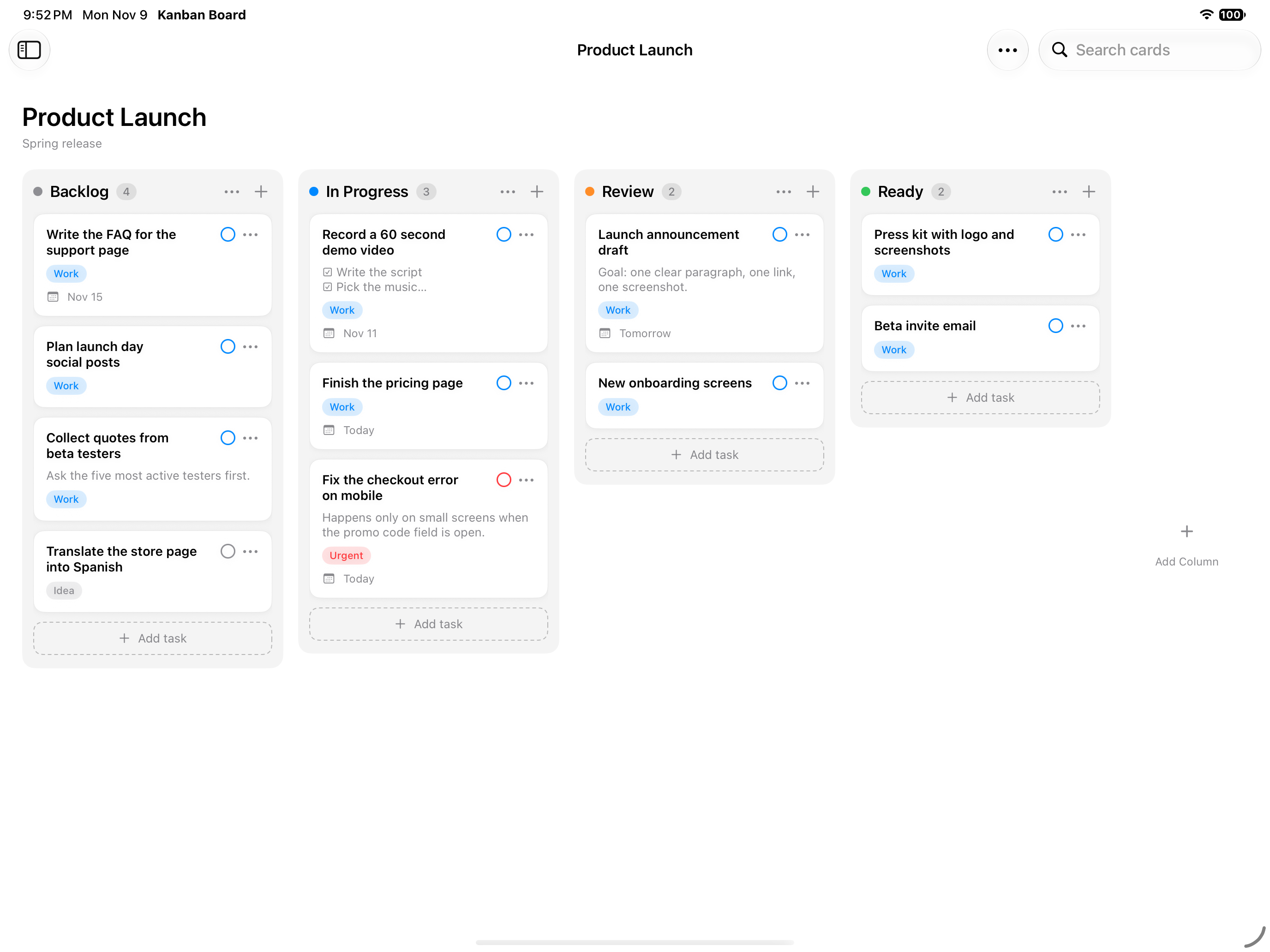
The same sample project on all three devices
The workflow
01 Board
Start with Now, Next, and Later, or name your own columns. When a task is ready for the next step, drag its card into that column.
02 Today
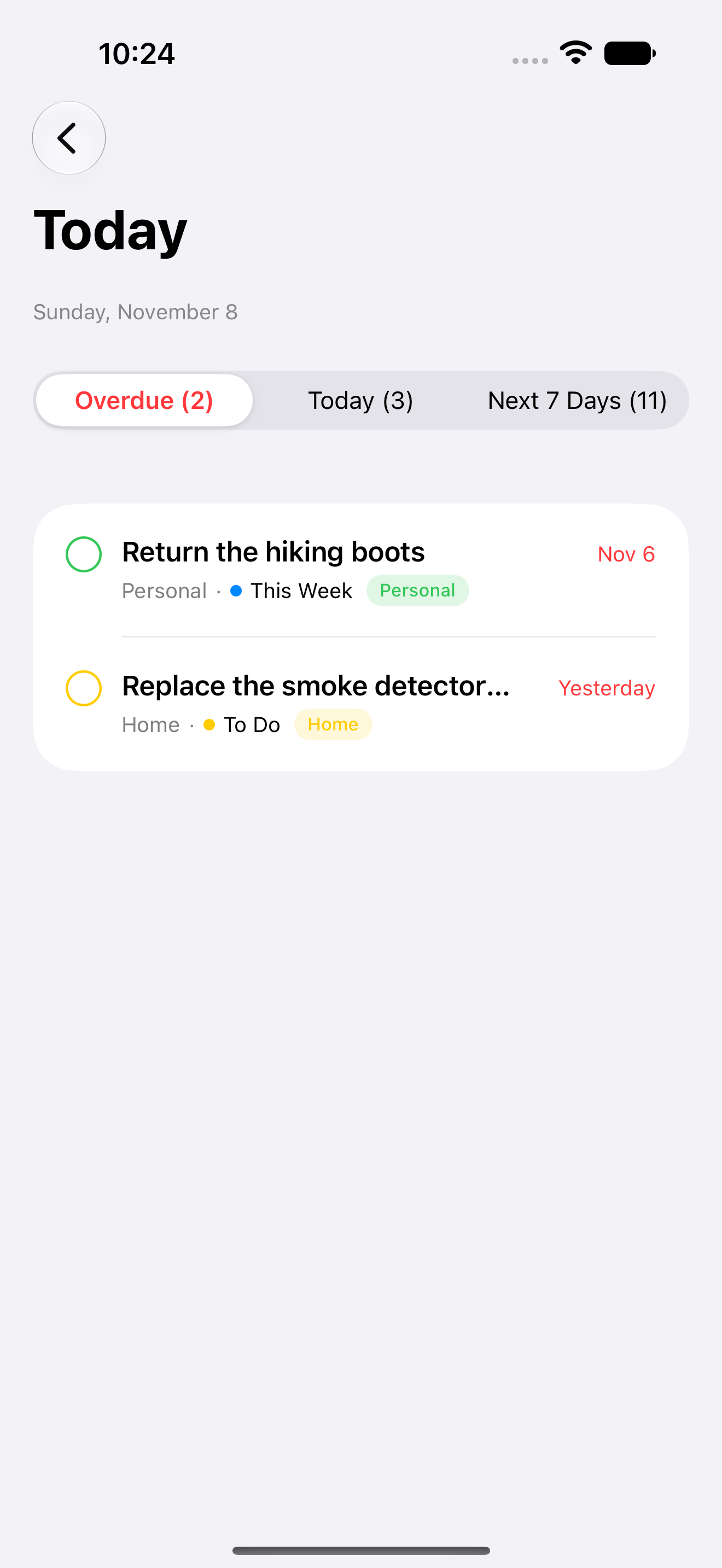
Today brings overdue cards, tasks due today, and the next seven days into one view. See work from every board without opening each one.
03 Archive
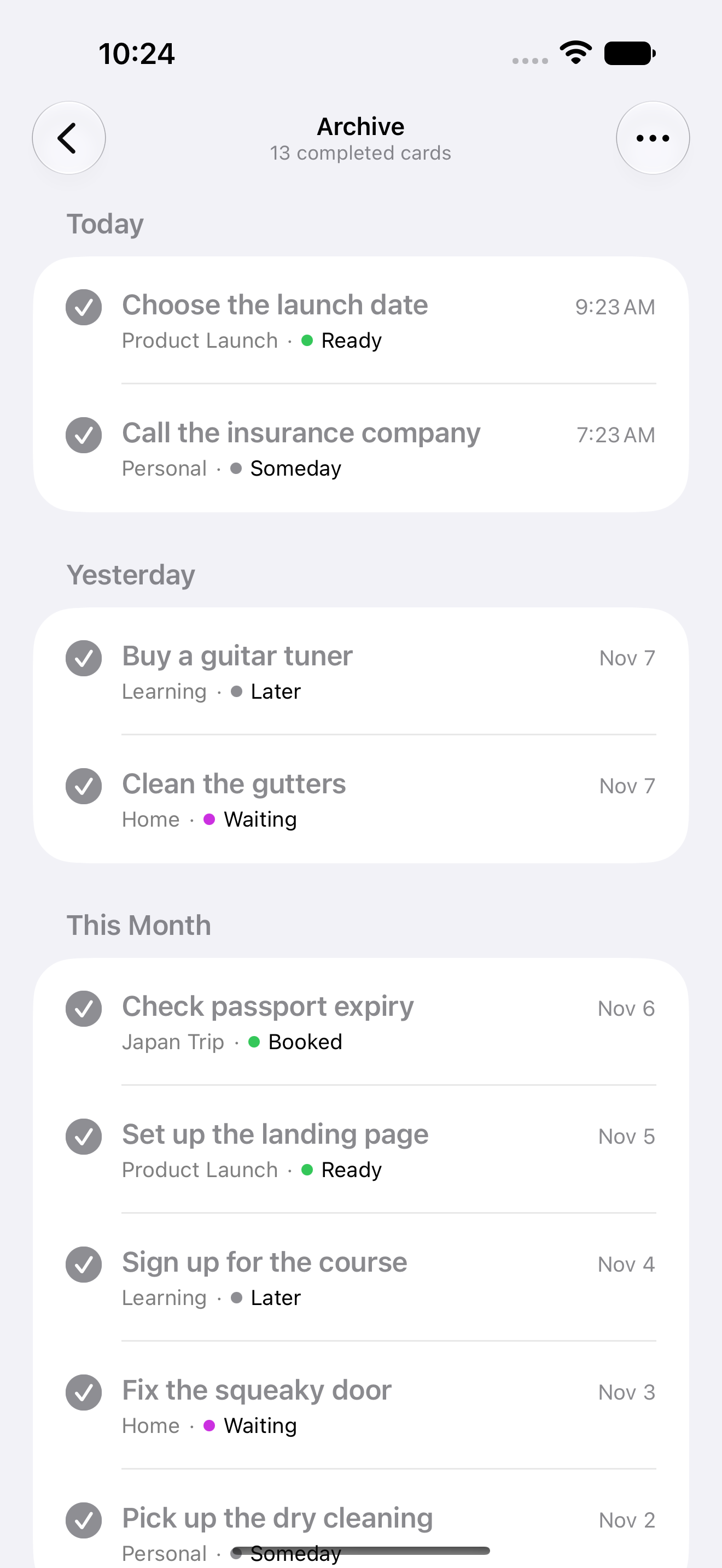
Completed cards move to Archive, grouped by when you finished them. Search for past work and restore a card if it needs another pass.
04 Card details
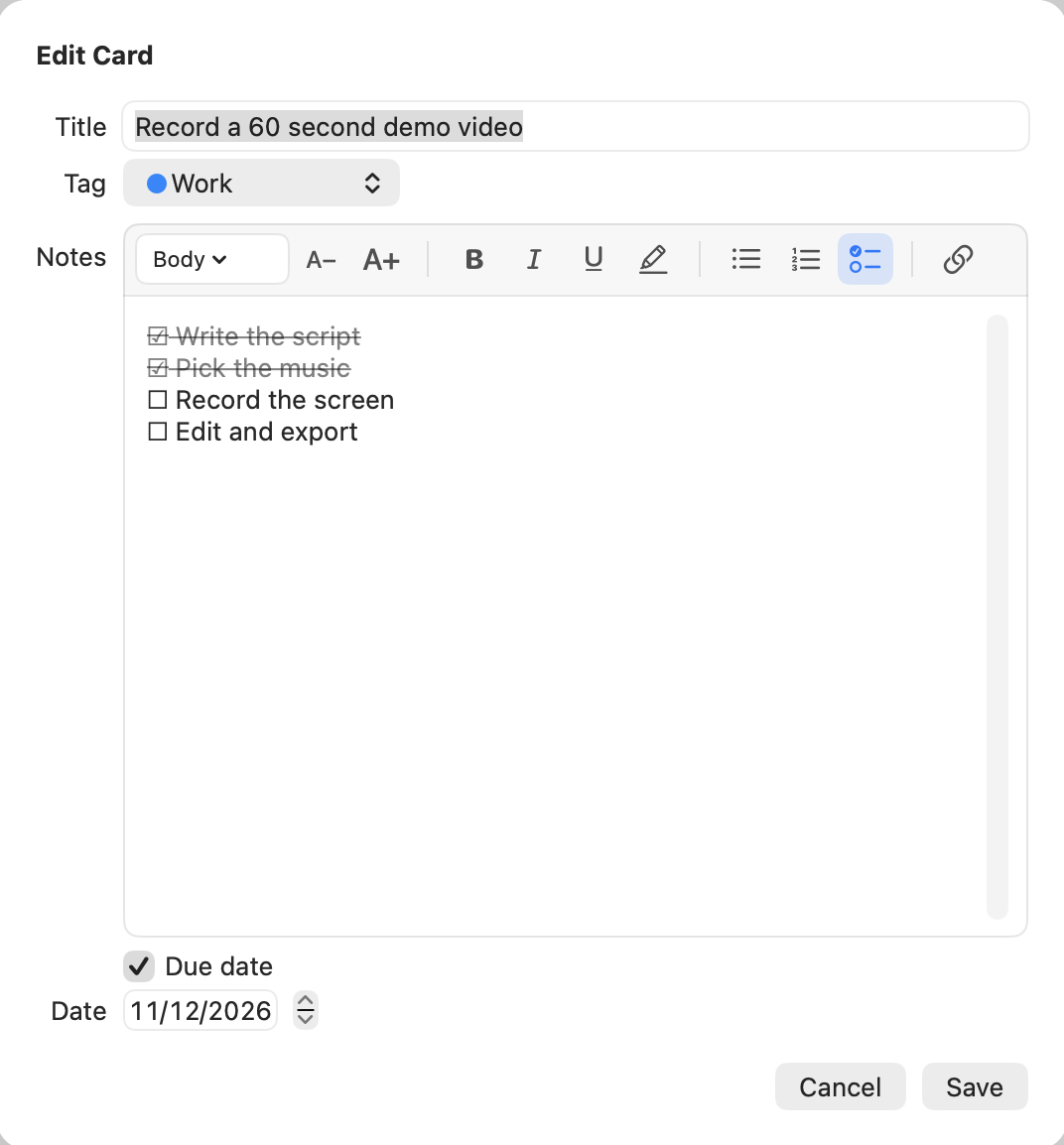
Use notes for context and a checklist for the next steps. Give the card a color tag and a due date so it’s easy to spot on your board and in Today.
Plainboard is a personal Kanban app for organizing your own projects and everyday tasks. Use it to plan a side project, track a home renovation, or organize weekly priorities on Mac, iPad, and iPhone.
Start with Now, Next, and Later. Rename, reorder, or add columns to match the way you work, then drag cards between them as tasks move forward.
Yes. Today gathers overdue cards, cards due today, and cards due in the next seven days across all your boards.
Add a due date, a color tag, and formatted notes with checklists and links. A card can hold the steps for a task as well as its deadline.
Yes. Completed cards move to Archive, where they’re grouped by completion date. Search for a card or restore it to your board if you need to reopen it.
Yes. Enable private iCloud sync on devices using the same Apple Account. Plainboard requires no separate account and has no ads, tracking, or analytics.
Yes. Export boards, columns, tags, and cards, including completed cards, in a JSON file. Importing a backup adds missing items and keeps your existing items intact.
Two boards, unlimited cards and columns, Today, Archive, card notes, iCloud sync, and JSON backups. A one-time Pro purchase unlocks unlimited boards.